
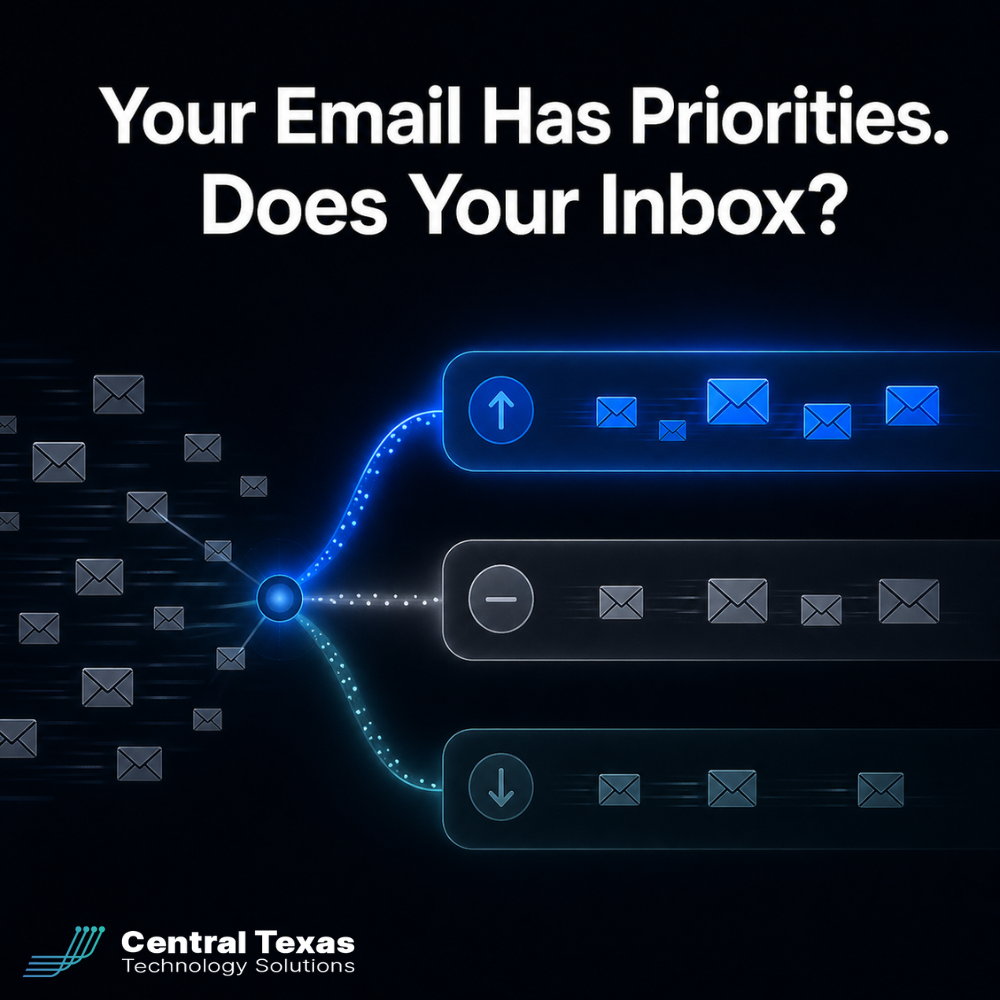
In 2026, the average professional receives more than 120 emails per day. For business owners and executives across Central Texas, the inbox has become one of the biggest drains on focused work time, not because email is inherently unmanageable, but because everything arrives with equal visual urgency. A vendor newsletter looks identical to a message from your most important client. A routine internal update sits right next to an action that needs a same-day response.
Microsoft just changed that. A new feature called "Prioritize My Inbox" is now rolling out across Microsoft 365 Outlook, and if your IT consultant has not mentioned it yet, this post will explain what it does, why it matters for your business, and how to make sure it is configured correctly from day one.
What Is at Stake
Research consistently shows that knowledge workers spend between 20 and 30 percent of their working day reading and responding to email. For a business owner or executive earning $75 an hour, that represents $600 or more per week spent processing messages, many of which are low-priority noise that could have waited or been handled by someone else.
The real cost is not the time spent on email itself. It is the interruption cost, the cognitive switching that happens when a low-importance message pulls you away from high-value work. Research from the University of California, Irvine, found that it takes an average of 23 minutes to fully return to a task after an interruption. When a routine email demands your attention during a focused stretch of work, you pay that cost whether you respond immediately or not.
For the lean, fast-moving businesses that make up much of the Central Texas economy, professional services firms in Austin, healthcare organizations in San Marcos, construction companies in Bastrop, this daily friction is a real constraint on how effectively a leadership team can operate.
What Copilot's Prioritize My Inbox Actually Does
Copilot reads every email as it arrives, without delaying delivery, and assigns a priority level of High, Normal, or Low. The scoring is not based on simple rules you configure manually. Copilot draws on Microsoft Graph data, which gives it visibility into your work context: who you communicate with regularly, their roles in your organization, your calendar commitments, and the actual content of each message.
High-priority emails appear with a visible upward-arrow indicator in the message list. When you open a message in the reading pane, Copilot displays a brief, plain-language explanation of why it considered that email important. This transparency matters, you are not just trusting an algorithm; you can see the reasoning and correct it when it is wrong.
You can also filter your inbox to show only High priority messages, or sort by priority grouping so the most important messages sit at the top regardless of arrival time. For executives who process email in batches rather than continuously, this filtering changes how the inbox feels entirely.
The feature works across every Outlook client, Windows, Mac, iOS, and Android. Enable it on one device and it activates everywhere. This is a generally available feature for organizations with active Microsoft 365 Copilot licenses, and the Prioritize My Inbox support documentation walks through the setup in detail.
What a Good IT Consultant Does With This Feature
One of the most common things we encounter at CTTS when working with Central Texas businesses is that Copilot features exist inside the Microsoft 365 tenant, but no one has turned them on or guided the team through using them. The license is in place. The capability is there. The return is not, because adoption never happened.
Prioritize My Inbox is straightforward to enable, but the customization step is where most businesses leave value on the table. By default, Copilot works from a general prioritization model based on broad patterns. It does not know that your most important client always emails from a personal Gmail address, or that your operations manager is the person whose messages always require same-day action, or that a particular project deadline makes every related email urgent right now.
Teaching Copilot those nuances, through Settings > Copilot > Prioritize, is the difference between a feature that works adequately and one that meaningfully changes how your leadership team spends its time.
As your Microsoft 365 managed services partner, CTTS helps businesses configure features like inbox prioritization as part of a deliberate Microsoft 365 adoption plan, because individual features deliver more value when they are part of a coherent strategy rather than a scattered list of things someone turned on one afternoon.
Best Practices for Copilot Inbox Prioritization in 2026
Enable It and Customize It in the First Session
Most features get switched on and left at default settings. Inbox prioritization works at defaults, but it works significantly better when customized to your specific role and business context. Set aside 15 minutes after enabling the feature to open Settings > Copilot > Prioritize and add your three to five most important senders, clients, or topic keywords.
This initial investment gives Copilot the context it needs to surface what matters most to you personally, not what matters for a generic professional with a generic inbox. The time you put in on day one pays dividends every day after that.
Read the Explanations and Correct the Misses
When Copilot explains why it marked an email as high priority, pay attention to the reasoning. When it gets it right, you are building confidence in the system. When it marks something incorrectly, use that as feedback to refine your customization rules. The feature learns from your preferences over time, but that learning happens faster when you engage with the explanations rather than dismissing them.
A good IT consultant will walk through this calibration step with you during the first week after enabling the feature, rather than pointing you to a help article and moving on.
Train Your Team on the Priority Filter
Inbox prioritization is most powerful when the people using it know how to work with the filtering capabilities it enables. Outlook now allows you to filter the inbox to show only High priority messages, or to sort by priority group. Make sure every team member with a Copilot license knows this filter exists and understands how to use it, especially executives and managers who handle significant daily email volume.
Check Your Microsoft 365 Directory Quality
Copilot's prioritization performs better when your Microsoft 365 environment is well-configured. If your organization directory is incomplete, missing job titles, departments, or reporting relationships in Azure Active Directory, Copilot has less context to work with when scoring how important a sender is. A quick review of your directory data quality can noticeably improve how accurately Copilot understands who in your network is worth prioritizing.
This is the kind of foundational work that separates an IT consultant who delivers long-term value from one who just turns features on and walks away.
Take the Next Step
If your business has Microsoft 365 Copilot licenses and you want to make sure you are getting real value from features like inbox prioritization, CTTS is ready to help. We work with Central Texas businesses to turn existing Microsoft investments into measurable productivity improvements, not just a list of available features on a licensing page.
Schedule a Free IT Strategy Session with CTTS and let's look at what your team is using and what it is missing.
Frequently Asked Questions
Do I need a paid Copilot license to use Prioritize My Inbox in Outlook?
Yes. Prioritize My Inbox requires a paid Microsoft 365 Copilot license assigned to your account. It is available across the new Outlook for Windows, Outlook for Mac, Outlook on the Web, classic Outlook, and mobile apps, but only for users with an active Copilot Business or Copilot Enterprise license.
If your organization lost Copilot Chat access in Office apps following Microsoft's April 15, 2026 access restriction, evaluating a paid license for your highest-volume email users is worth exploring, particularly now that features like inbox prioritization make the productivity case more concrete.
Will Copilot move or delete my emails when it prioritizes them?
No. Copilot's Prioritize My Inbox feature does not move, sort into folders, or delete any messages. It adds a visual priority indicator to emails in your inbox and provides reasoning text in the reading pane, nothing else changes about how your email is delivered or stored.
You can filter or sort by priority at any time as a manual action, but Copilot does not automate the routing of your messages as part of this feature. Your inbox structure stays exactly as it is; Copilot simply layers contextual priority information on top of what you already see.
How is this different from Outlook's Focused Inbox feature?
Focused Inbox splits your email into two tabs, Focused and Other, using a relatively simple algorithm based primarily on sender patterns and past interaction history. Copilot's Prioritize My Inbox goes significantly further: it reads the content of each email, evaluates the sender's role and your relationship with them through Microsoft Graph, considers your calendar context, and produces a three-tier priority score with a human-readable explanation you can review and correct.
It is also customizable in ways that Focused Inbox was not, and the transparency of the reasoning makes it easier to trust and refine over time. Most businesses that try both features find Prioritize My Inbox meaningfully more accurate, especially when a mix of external clients, internal contacts, and automated system emails all land in the same inbox.
Contact CTTS today for IT support and managed services in Austin, TX. Let us handle your IT so you can focus on growing your business. Visit CTTSonline.com or call us at (512) 388-5559 to get started!