
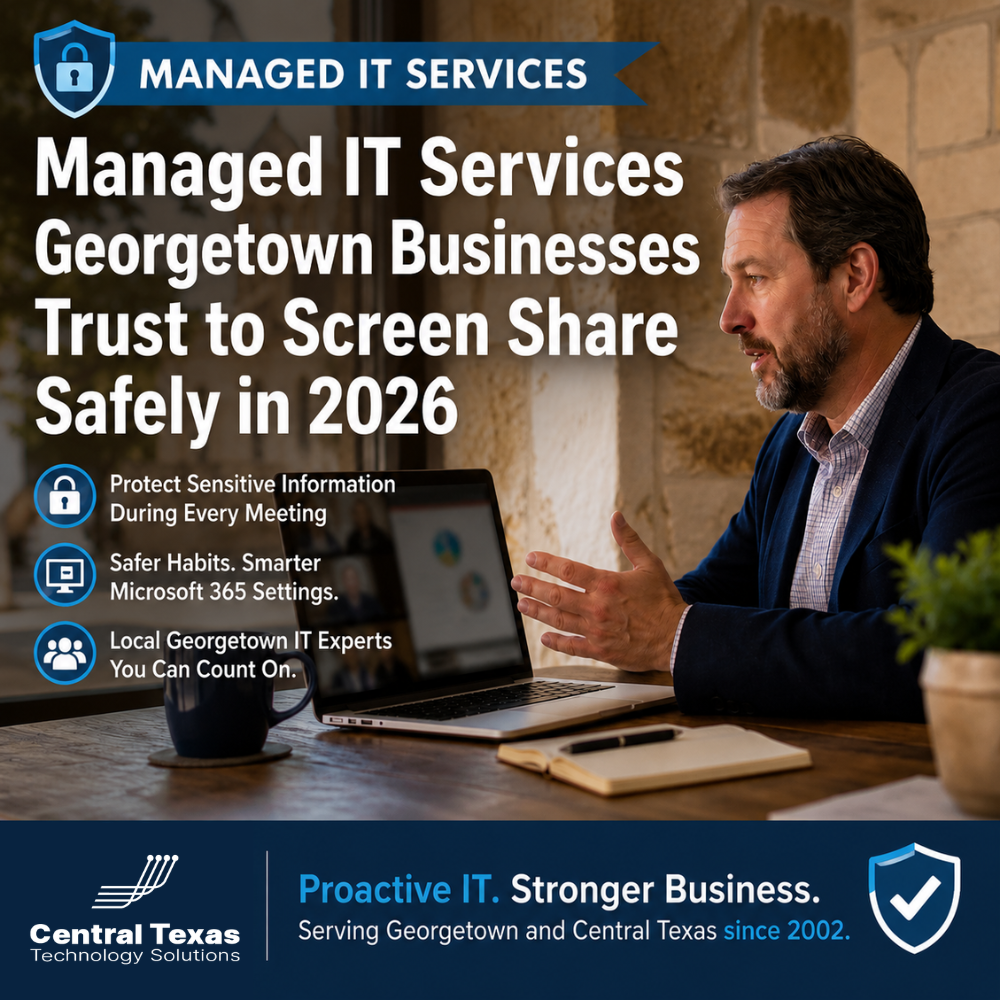
In 2026, nearly every Georgetown business meeting happens over a shared screen, whether it is a client walkthrough, a budget review, or a quick troubleshooting call with the help desk. The trouble is that a shared screen shows everything within reach of the cursor, not just the slide or spreadsheet the presenter meant to show. That is exactly why more owners are turning to managed IT services Georgetown teams already trust, not just to fix problems after the fact, but to build safe screen-sharing habits into the way their people work every day.
What Is at Stake
A single unplanned screen share can expose client files, financial data, or internal messages to someone who was never meant to see them.
Screen sharing itself is not the risk. The risk is everything that rides along with it: a notification banner from a client's invoice, an open tab with payroll numbers, a chat preview from an employee's personal account, or a folder full of signed contracts sitting on the desktop. None of that requires a hacker or a stolen password. It only requires someone clicking Share before they have thought about what is actually visible on their screen.
For a Georgetown business, the fallout is not abstract. A misplaced glance at a competitor's pricing sheet during a joint call, a donor list flashed during a nonprofit board meeting, or an employee's home address left open in an HR tab can turn a routine Teams call into an uncomfortable compliance conversation or a damaged client relationship. Data exposed this way rarely makes headlines. It still costs trust, and sometimes it costs the relationship entirely. In regulated fields like healthcare or professional services, an accidental share of the wrong file can also become a reportable incident, not just an embarrassing one.
Construction and professional services firms around Georgetown run a surprising amount of business over shared screens: bid walkthroughs, change orders, and client billing reviews all happen with a desktop on display. A subcontractor's rate sheet left open in a background tab, or a client's retainer agreement visible in a taskbar preview, is exactly the kind of low-drama mistake that never gets reported but still erodes the trust a relationship was built on.
Why Central Texas Businesses Face This Challenge
Most Central Texas teams share screens every day but have never been shown what sharing the right thing actually looks like in practice.
Screen sharing became second nature during the shift to hybrid work, but the habits around it never got the same attention as the technology itself. Georgetown businesses in the 10 to 250 employee range typically do not have a dedicated IT department watching how Teams, Zoom, or other meeting tools get used day to day. Employees are left to figure out their own routines, and most default to sharing their entire desktop because it is one click faster than picking a single window.
That gap matters more than it used to. Microsoft rolled out a redesign to Teams in August 2026 specifically to slow down the moment before a share goes live, moving the final Share button through a two-step confirmation because accidental full-desktop shares had become common enough to warrant a fix at the product level. If Microsoft is re-engineering its own software to catch this mistake, it is safe to assume most teams are making it too.
The problem is also bigger than it was even two years ago. Meetings now routinely include AI notetakers and recording bots that capture everything shown on screen and store it indefinitely, which means an accidental share is no longer a moment that passes. It becomes a permanent transcript, and in some cases a permanent recording, of information that was never meant to leave the room. For a Georgetown business handling client financials, patient information, or donor records, that permanence changes the size of the mistake considerably.
How CTTS Helps Georgetown Businesses Screen Share Safely
Under Complete Care Coverage, CTTS manages the Microsoft 365 tenant settings that make safe sharing the default instead of something employees have to remember on their own. That includes configuring Teams so window-only sharing is the standard option, tightening notification behavior during active calls, and monitoring the broader tenant for the kind of oversharing and file sprawl that makes an accidental exposure worse when it does happen.
Just as important, CTTS documents the simple habits that keep a Georgetown team out of trouble in the first place, and puts them where employees will actually see them, not buried in a policy binder nobody opens. When a new hire joins or a new client-facing tool gets adopted, that guidance travels with it. If something does go wrong, our helpdesk is answered in 3 rings by a local team who already knows your environment, so a mistake gets addressed in minutes instead of sitting in a ticket queue. For Georgetown businesses that already have an internal IT person or small team, Co-Managed IT extends CTTS's monitoring, documentation platform, and PSA tools to support that team directly, rather than replacing it, so the same tenant-level safeguards apply whether IT is fully outsourced or handled in-house with backup.
CTTS has served Central Texas businesses and nonprofits since 2002, and current clients report a 96% satisfaction score across 159 surveys. That track record comes from treating the small, everyday habits, not just the big security tools, as part of what a managed IT services Georgetown partnership actually covers.
Screen-Sharing Habits Every Georgetown Team Should Build
What should you close before sharing your screen?
Close anything that is not part of the presentation before you click Share, including email, chat apps, browser tabs with saved passwords or client portals, and any folder that shows file names on the desktop. A clean desktop with only the files you need takes thirty seconds to set up and removes almost every accidental-exposure risk before the call even starts.
Should you share your whole desktop or a single window?
Share a single window instead of your whole desktop whenever possible. Window sharing shows only the application you have chosen, so a pop-up notification, a second monitor, or a background app never makes it into view. Full-desktop sharing should be reserved for the rare case where you genuinely need to move between several applications live, and even then it is worth a second thought.
Turn on Do Not Disturb before every call
Notifications are the single most common source of accidental exposure, since almost any app can trigger a banner at the wrong moment. Turning on Do Not Disturb before a screen share takes seconds and silences email previews, chat messages, and calendar reminders that would otherwise pop up in front of a client or a boardroom.
Preview what you are sharing before the room does
Most meeting platforms show a preview of the shared window before it goes live to attendees. Take the extra second to actually look at it. That habit alone catches the mistakes that Do Not Disturb and window sharing do not, like a spreadsheet with the wrong tab open or a browser sitting on an internal dashboard.
Treat AI meeting bots like a permanent audience
If a call includes an AI notetaker or recording bot, assume everything shown on screen becomes a searchable record that outlives the meeting itself. Apply the same discipline you would for a client-facing presentation, even for an internal check-in, since the recording does not know the difference between the two.
Take the Next Step
Safe screen sharing is one habit among many that determines whether a Georgetown business's technology is helping it thrive or quietly putting it at risk. If you are not sure what your team's Microsoft 365 tenant currently allows by default, or whether your notification and sharing settings are doing you any favors, CTTS's Executive IT Risk Assessment is a straightforward way to find out. It is a no-pressure conversation with a local team that has been doing this in Central Texas since 2002, built for owners who want a clear picture of where they stand before a small habit turns into a bigger problem.
Schedule an Executive IT Risk Assessment with CTTS today!
Frequently Asked Questions
Does screen sharing in Microsoft Teams put my Georgetown business at risk?
Yes, if default settings and habits are not managed. Full-desktop sharing, notification pop-ups, and cluttered desktops are the most common ways sensitive information gets exposed during an otherwise routine meeting, and the risk grows when AI notetakers record the call.
What is the fastest way to prevent an accidental screen-sharing mistake?
Close unrelated apps and browser tabs, turn on Do Not Disturb, and share a single window instead of your full desktop. Those three habits take under a minute combined and prevent the vast majority of accidental exposures.
Do managed IT services include training employees on screen-sharing safety?
Yes. Under Complete Care Coverage, CTTS configures Microsoft 365 tenant settings to make safe sharing the default and documents simple habits for employees, so safe screen sharing does not depend on any one person remembering the rules.
Contact CTTS today for IT support and managed services in Austin, TX. Let us handle your IT so you can focus on growing your business. Visit CTTSonline.com or call us at (512) 388-5559 to get started!