
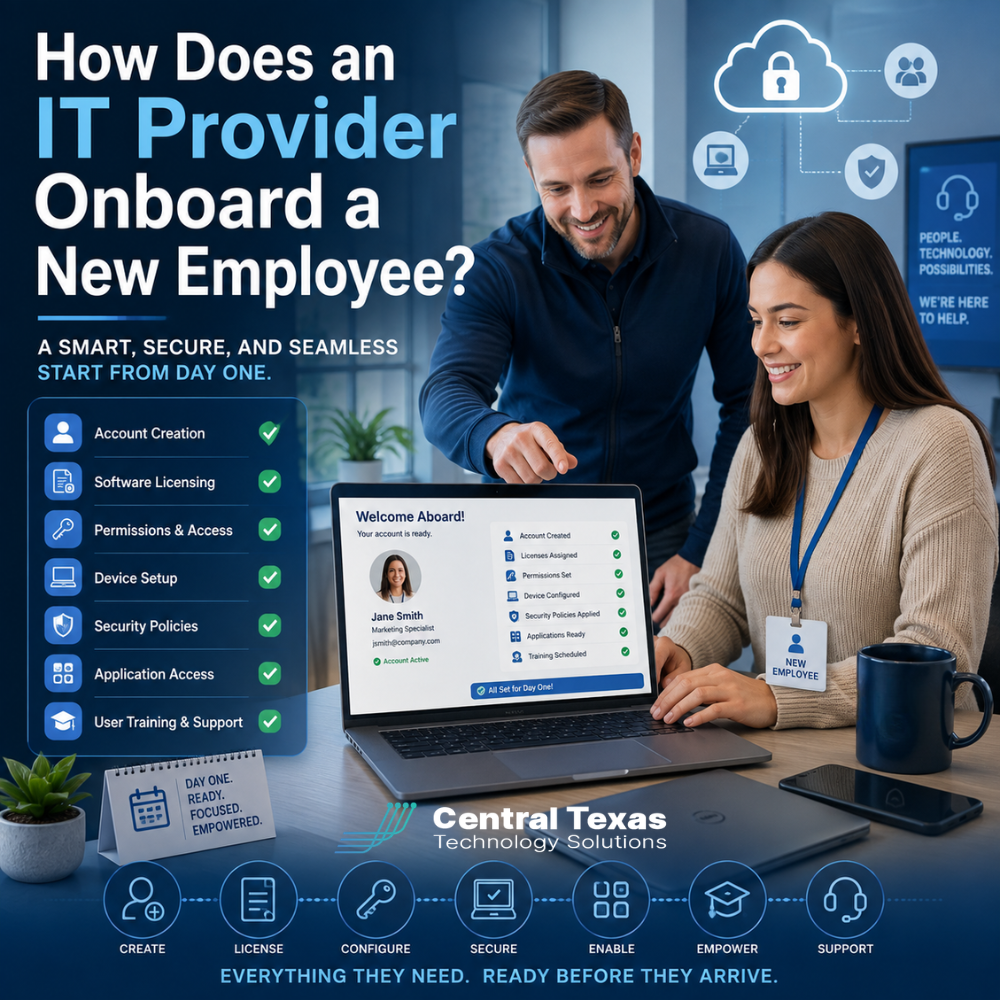
Hiring a new employee should feel like progress. But when technology is not ready on their first day, that momentum can disappear quickly.
A missing email account, an unconfigured laptop, or incorrect software permissions can leave a new hire waiting instead of working. It can also create security risks if access is rushed or handled without a clear process.
A proactive IT provider helps prevent those problems by coordinating accounts, devices, applications, permissions, security settings, and training before the employee arrives. For businesses in Austin, Buda, San Marcos, and New Braunfels, a consistent onboarding process can improve productivity while protecting company systems and data.
What Information Does an IT Provider Need Before Employee Onboarding?
Successful IT onboarding begins with accurate information from the employer. The IT provider needs enough notice to prepare the employee's technology based on their position and responsibilities.
Common details include:
- Employee name and job title
- Start date
- Department and manager
- Office, remote, or hybrid work location
- Required applications
- Access to shared files and folders
- Company email groups
- Hardware requirements
- Special security or compliance needs
The employee's role should determine what technology they receive. A legal assistant may need access to case management software, while a construction project manager may require estimating tools, cloud storage, and mobile access.
Using another employee as an access template can be helpful, but permissions should still be reviewed. Copying access without verification may give a new employee more information than they need.
How Are User Accounts and Software Licenses Created?
One of the first steps in new employee onboarding is creating the employee's company identity. This often includes an email account, username, temporary password, and access to Microsoft 365, Google Workspace, or another business platform.
The IT provider may also assign licenses for:
- Email and calendar services
- Microsoft Office applications
- Cloud file storage
- Video conferencing
- Cybersecurity tools
- Accounting or customer relationship software
- Industry-specific platforms
Licensing decisions should be based on the employee's actual needs. Purchasing the wrong license can either create unnecessary costs or prevent the employee from using important features.
A proactive IT provider also checks whether the company has enough licenses available before the start date. This prevents last-minute purchases and reduces the chance that a new employee begins work without the tools required for the job.
How Are Employee Permissions and Application Access Managed?
Not every employee should have access to every file, system, or application.
IT providers typically follow the principle of least privilege, which means employees receive only the access needed to perform their jobs. This helps reduce accidental data exposure and limits the damage that could occur if an account is compromised.
Permissions may include access to:
- Shared drives and folders
- Microsoft Teams or SharePoint sites
- Departmental email groups
- Financial systems
- Customer databases
- Project management platforms
- Remote access tools
- Line-of-business applications
For example, a manufacturing employee may need access to production systems without access to payroll files. A nonprofit program manager may need donor or client information but not administrative financial records.
Healthcare, legal, and professional services organizations may also need to consider privacy, confidentiality, and compliance requirements when granting access. The onboarding process should document who approved each permission and why it was assigned.
What Happens During New Employee Device Setup?
The new employee's computer should be configured before their first day whenever possible. This allows them to begin working without spending hours installing updates or contacting support.
Device setup may include:
- Installing the operating system and updates
- Creating the employee profile
- Installing business applications
- Connecting printers and shared resources
- Configuring email
- Setting up cloud storage
- Adding remote access tools
- Installing endpoint security
- Applying company settings and restrictions
The IT provider may also record the device in the company's hardware inventory. This helps track warranty information, age, condition, assignment, and replacement planning.
For remote or hybrid employees, the device may need to be shipped to the employee's home. In that situation, the IT provider should confirm that the laptop is encrypted, protected, and ready to connect securely before it leaves the office.
How Are Security Policies Applied During Employee Onboarding?
Security should be built into onboarding rather than added later.
A properly managed employee account may include multi-factor authentication, password requirements, device encryption, endpoint protection, email filtering, and automatic screen locking. The IT provider may also block employees from installing unapproved software or saving company information to personal storage accounts.
Common security steps include:
- Enabling multi-factor authentication
- Registering approved devices
- Configuring password policies
- Applying mobile device management
- Installing endpoint detection and response tools
- Restricting administrator privileges
- Confirming backup protection
- Applying email and web security policies
These controls are especially important when employees work remotely, access sensitive data, or use mobile devices.
Security policies should also reflect the business environment. A healthcare practice may need stricter access controls around patient information. A legal firm may need additional safeguards for confidential case files. Construction and manufacturing businesses may need to protect job costing, plans, operational systems, and vendor information.
What Technology Training Should a New Employee Receive?
Even a well-configured computer will not solve every onboarding challenge. New employees also need clear instructions for using company technology safely and effectively.
Training may cover:
- How to sign in and reset a password
- How to use multi-factor authentication
- How to access shared files
- How to use communication platforms
- How to submit an IT support request
- How to recognize phishing emails
- How to handle sensitive information
- What software and devices are approved
Employees should know who to contact when something goes wrong. They should also understand that reporting a suspicious email or device problem quickly is encouraged.
For many organizations, security awareness training is part of the onboarding process. This can help employees recognize common threats before they click a harmful link, disclose a password, or accidentally share confidential information.
Why Should Employee IT Onboarding Follow a Checklist?
A documented checklist creates consistency. It reduces the risk that an account, license, device setting, security control, or permission will be forgotten.
It also makes the process easier to audit and improve. When something goes wrong, the company can review the onboarding steps and identify where the breakdown occurred.
CTTS helps Central Texas businesses create a repeatable onboarding process that supports new employees without weakening security. Instead of reacting to problems on the employee's first day, the technology is prepared in advance and aligned with the employee's role.
This approach supports faster productivity, better accountability, and stronger business continuity as the company grows.
Prepare New Employees Before Their First Day
A new employee should not spend their first morning waiting for a password, software license, or working computer.
CTTS helps businesses prepare accounts, devices, permissions, applications, and security policies before the employee arrives. Our team works as a strategic technology partner, helping healthcare, legal, professional services, construction, manufacturing, and nonprofit organizations build a more secure and reliable onboarding process.
Schedule a free strategy call with CTTS to improve your employee onboarding process and make every new hire's first day more productive.
Frequently Asked Questions
How much notice does an IT provider need to onboard a new employee?
Providing at least several business days of notice is helpful, especially when a new computer, software license, or specialized application is required. More time may be needed if equipment must be ordered or shipped. A documented onboarding request process helps managers provide the necessary information early.
Can an IT provider onboard remote employees?
Yes. An IT provider can configure a secure laptop, create accounts, assign applications, apply security policies, and guide the employee through the initial sign-in process remotely. The device should be fully protected before it is shipped or connected to company systems.
Should employee access be copied from another user?
Another employee's access can be used as a starting point, but it should not be copied without review. Responsibilities may differ, and the existing user may have accumulated unnecessary permissions. Each new employee's access should be approved based on their specific role.
Contact CTTS today for IT support and managed services in Austin, TX. Let us handle your IT so you can focus on growing your business. Visit CTTSonline.com or call us at (512) 388-5559 to get started!
Not sure what to look for in IT services? Start here:
What Happens When You Submit an IT Support Ticket?
How IT Monitoring Tools Detect Problems Before Your Team Notices Them
What Happens During a Routine IT Maintenance Cycle?
How Backup and Disaster Recovery Plans Work in Real World Scenarios
What Is an IT Roadmap and Why Every Growing Business Needs One
What Happens During an IT Assessment and Why Does It Matter?
How IT Documentation Protects Your Business From Confusion and Downtime
What Is Vendor Management and Why Should Your IT Partner Handle It?
How a Proactive IT Partner Plans for Business Growth
What Happens Behind the Scenes When CTTS Monitors Your Network?