
Microsoft 365 helps businesses store email, collaborate on documents, and access files from almost anywhere. Because the platform includes recycle bins, retention settings, and version history, many business leaders assume their data is fully backed up.
That assumption can create a serious recovery problem.
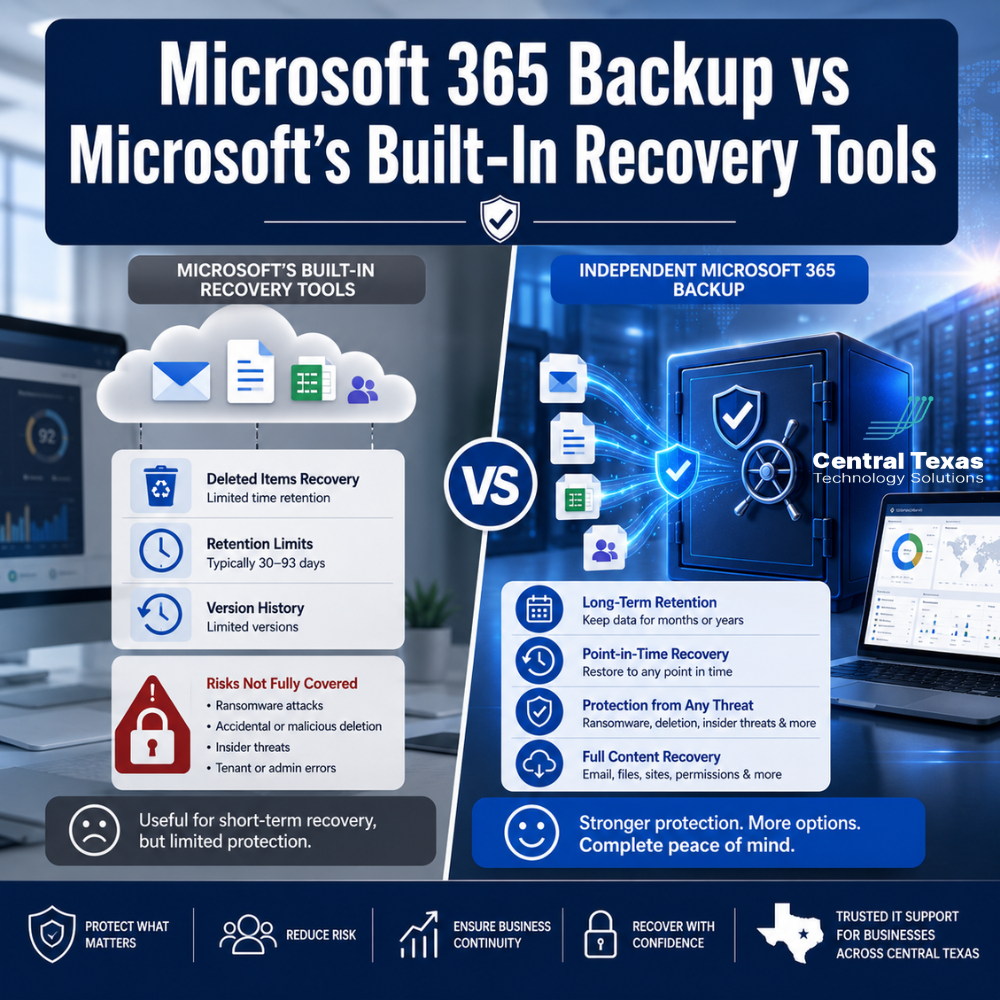
Microsoft’s built-in recovery tools are valuable, but they are designed for specific situations and often have limited recovery windows. A separate Microsoft 365 backup solution provides another layer of protection when information is deleted, corrupted, encrypted, or discovered missing after those windows expire.
For businesses in Austin, Round Rock, Georgetown, and Cedar Park, the real question is not whether Microsoft 365 has recovery tools. It is whether those tools can restore the right information quickly when the business needs it.
Are Microsoft 365 Recovery Tools the Same as a Backup?
Built-in recovery tools and independent backups serve related but different purposes.
Microsoft 365 includes features that can help recover recently deleted emails, restore earlier versions of documents, and roll back certain changes in OneDrive or SharePoint. These features are especially useful when someone notices a problem quickly.
A backup solution creates protected recovery points according to a defined backup policy. Depending on the solution, administrators may be able to recover individual emails, complete mailboxes, files, folders, SharePoint sites, and OneDrive accounts from dates outside the normal built-in recovery windows.
Microsoft now offers Microsoft 365 Backup as a separate, paid service for Exchange Online, OneDrive, and SharePoint. Organizations can also use third-party backup platforms that store and manage recovery copies separately from their everyday Microsoft 365 environment.
The important distinction is simple: Microsoft 365 includes recovery features, but comprehensive backup protection must be intentionally configured.
Microsoft 365 Retention vs Backup Retention
Retention policies preserve information for compliance, legal, or business requirements. They can help prevent content from being permanently removed during a defined period.
However, retention is not always the same as an easy, point-in-time restoration process.
A retention policy may preserve an item somewhere within Microsoft 365, but recovering it can require administrative searches, special permissions, or compliance tools. Retention configurations can also become complicated when different rules apply to email, Teams, SharePoint, and OneDrive.
Backup retention is generally designed around operational recovery. The organization decides how long recovery points should remain available and how administrators will restore the data.
This distinction matters for healthcare organizations protecting patient-related communications, legal firms preserving case records, professional services companies managing client documents, construction businesses storing project files, manufacturers protecting operational records, and nonprofits maintaining donor and program information.
Retention helps answer, “Must we preserve this information?”
Backup helps answer, “How quickly can we put it back?”
Many businesses need both.
Deleted Item Recovery in Exchange Online
When a user deletes an email, it typically moves to the Deleted Items folder. Even after that folder is emptied, the message may remain temporarily available through the Recover Deleted Items feature.
In Exchange Online, the default deleted-item retention period is 14 days. Administrators can increase it to a maximum of 30 days. Once the applicable period expires, recovery may depend on whether another retention policy, legal hold, or backup system preserved the message.
That may be enough when an employee immediately realizes an important message was deleted. It may not be enough when:
- The deletion is discovered months later
- An employee intentionally removes information before leaving
- A mailbox is deleted during an incomplete offboarding process
- A compliance request requires older correspondence
- A compromised account deletes or alters large amounts of email
An independent backup can provide longer recovery periods and more predictable restoration options without relying entirely on the mailbox’s standard deleted-item window.
Version History in SharePoint and OneDrive
Version history allows users to view or restore earlier versions of files stored in SharePoint and OneDrive. It can help correct accidental edits, overwritten documents, and some ransomware-related changes.
This is one of Microsoft 365’s most useful built-in protections, but it should not be treated as the entire backup plan.
Version history focuses on changes to files that still exist within the Microsoft environment. Recovery can become more difficult when entire folders, user accounts, sites, or large groups of files are deleted. Version limits and retention settings may also affect how far back an organization can restore information.
There is another practical concern. If users or attackers have enough access, they may be able to alter or delete content within the same environment where its recovery history is maintained.
A separately managed backup gives the organization another recovery path rather than depending entirely on the affected Microsoft 365 tenant.
Microsoft 365 Ransomware Recovery
Microsoft provides several protections that can help businesses respond to ransomware. SharePoint and OneDrive version history may allow encrypted files to be restored to earlier versions. File Restore can help roll back OneDrive or SharePoint changes from within the previous 30 days.
These tools can be extremely valuable, but ransomware recovery is rarely as simple as clicking a restore button.
Before restoring information, the business must determine:
- Which accounts and devices were compromised
- When the malicious activity began
- Whether attackers still have access
- Which files were encrypted, deleted, or altered
- Whether restored data could be reinfected
- How employees will continue working during recovery
Built-in tools may restore files, but they do not replace incident response planning, device security, identity protection, documentation, and tested recovery procedures.
A backup should also be protected from the same credentials and administrative access used in the production environment. Otherwise, an attacker who compromises an administrator account may be able to damage both live data and its recovery options.
Why Independent Microsoft 365 Backups Matter
A properly configured backup solution can provide greater control over how Microsoft 365 data is protected and restored.
Depending on the platform and policy, benefits may include:
- Longer retention periods
- Point-in-time recovery
- Granular restoration of emails, files, folders, or accounts
- Recovery after users or accounts have been deleted
- Centralized backup monitoring and reporting
- Protection from accidental and malicious deletion
- Faster restoration of large amounts of data
- Recovery copies managed separately from daily Microsoft 365 activity
Microsoft 365 Backup provides policy-based protection and restoration for Exchange, OneDrive, and SharePoint as a paid, consumption-based service. Third-party platforms may provide additional storage locations, management features, service coverage, or retention choices. The right option depends on the organization’s risks, compliance obligations, recovery goals, and budget.
The strongest strategy does not replace Microsoft’s built-in tools. It uses them alongside independent backup protection.
How CTTS Builds a Practical Microsoft 365 Recovery Strategy
Buying backup software is only one step. The system must also be configured, monitored, secured, and tested.
CTTS helps Central Texas businesses evaluate what information they store in Microsoft 365, how long they need to retain it, and how quickly it must be restored after an incident. We can help align backup policies with employee offboarding, cybersecurity controls, compliance requirements, and business continuity planning.
Rather than waiting until data disappears, CTTS takes a proactive approach by verifying that backups are running, reviewing failures, documenting recovery procedures, and helping businesses test whether important information can actually be restored.
Make Sure Your Microsoft 365 Data Can Be Recovered
Microsoft 365 provides valuable recovery tools, but those tools may not cover every deletion, attack, or long-term recovery need.
CTTS can review your current Microsoft 365 environment, identify recovery gaps, and help you create a backup strategy that protects email, OneDrive, and SharePoint data.
Schedule a free strategy call with CTTS to make sure your Microsoft 365 recovery plan works before you need it.
Frequently Asked Questions
Does Microsoft automatically back up all Microsoft 365 data?
Microsoft protects the availability and operation of its cloud platform, but businesses must configure the retention, recovery, and backup services that meet their own requirements. Microsoft 365 includes several recovery features, while Microsoft 365 Backup is a separate paid service that must be activated and configured.
Is version history enough to protect against ransomware?
Version history can help restore earlier copies of files, but it is only one part of ransomware recovery. Businesses also need secure identities, protected endpoints, incident response procedures, separate backups, and a plan for confirming that the threat has been removed before restoring data.
How long should a business retain Microsoft 365 backups?
The right retention period depends on regulatory requirements, contracts, operational needs, and how long it may take to discover missing information. Some businesses only need several months, while others may need multiple years. A backup assessment can help determine an appropriate policy.
Contact CTTS today for IT support and managed services in Austin, TX. Let us handle your IT so you can focus on growing your business. Visit CTTSonline.com or call us at (512) 388-5559 to get started!
Explore these expert insights before making your next IT decision:
IT Generalists vs IT Specialists: What Does Your Business Really Need?
Should You Standardize Your Technology Stack or Stay Flexible?
One IT Vendor vs Multiple Vendors: Which Approach Reduces Risk?
Is It Better to Upgrade Your Current Systems or Start Fresh?
Cloud Backup vs Local Backup: Which Does Your Business Need?
Managed IT Services vs Hiring One IT Person: Which Is Safer for a Growing Business?
Cybersecurity Software vs Cybersecurity Strategy: What Is the Difference?
Hourly IT Support vs Monthly Managed IT Services: Which Gives You Better Control?
Microsoft 365 Basic Setup vs Managed Microsoft 365 Support: What Are You Missing?
Cybersecurity Insurance vs Cybersecurity Protection: Why Your Business May Need Both